
Test your Bot Defense configuration
Overview
Important: Bot Defense self-service policy management is an early access feature.
Use the following information to help make sure that Bot Defense is configured correctly. Confirm that Bot Defense injects JavaScript tags in your application pages correctly. Also confirm that you have correctly integrated the F5 Distributed Cloud Mobile SDK with your mobile application.
Verify JavaScript tag injection in your entry pages
To confirm that Bot Defense injects JavaScript tags in your entry pages, use the following procedure to inspect the pages in your browser and look for Bot Defense-specific headers.
Note: For help with JavaScript tag injection, contact the F5 Operations team.
-
Open one of the application pages you chose to protect.
-
Use the developer tools in your browser or view the page source to inspect the page and confirm that Bot Defense has inserted JavaScript tags with the query string parameter,
?single. For example,yourscript.js?single.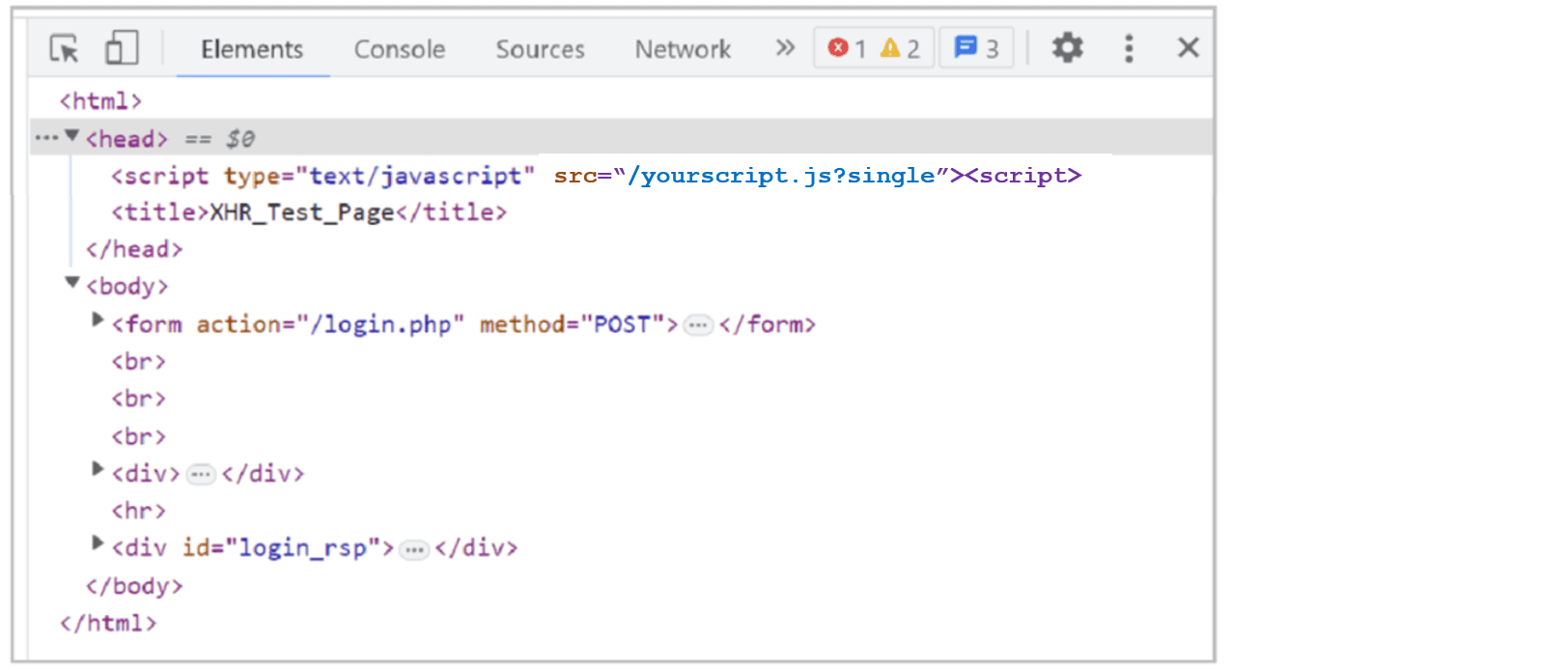
Figure: JavaScript tags
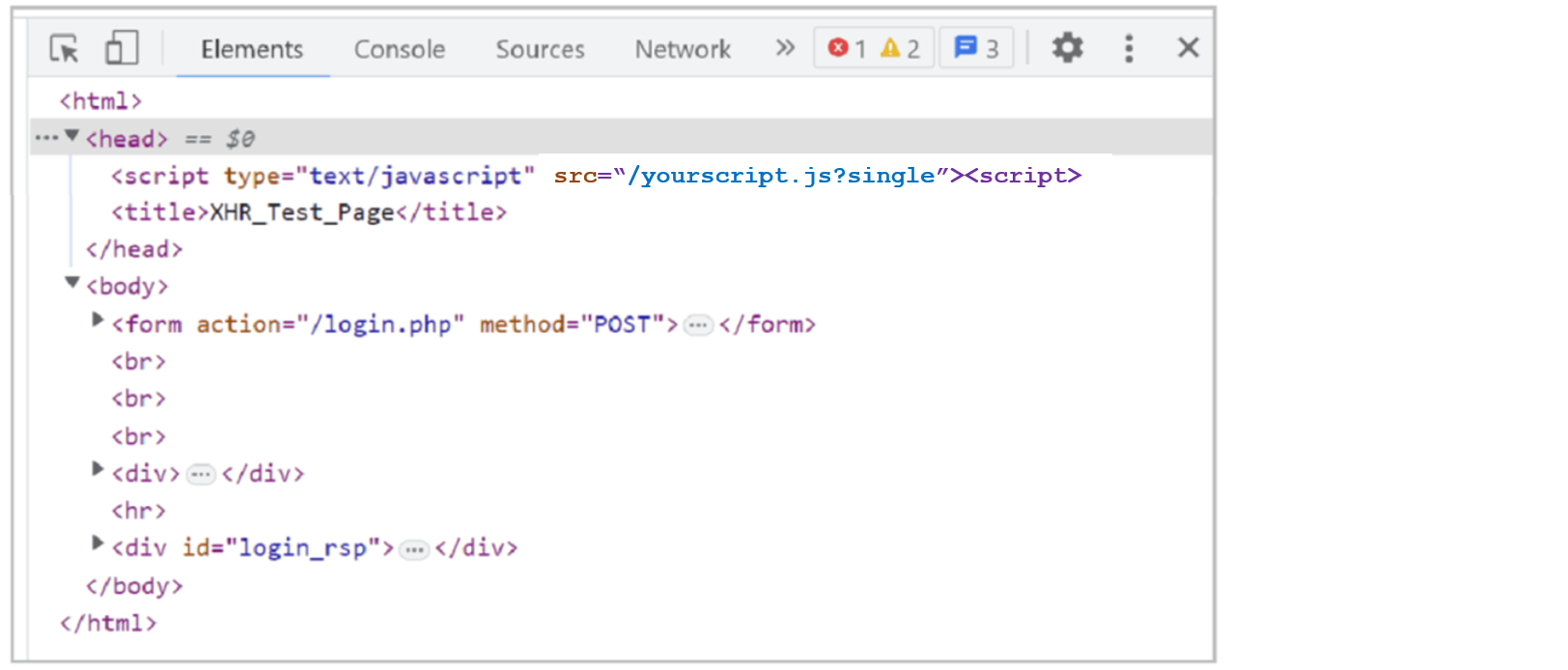
If the JavaScript tags appear correctly, then Bot Defense is correctly injecting the JavaScript tags into your entry pages. If you don't see the JavaScript tags, confirm that your configuration is correct. Contact your F5 Operations team for help.
Verify Mobile SDK integration
If you integrated the Distributed Cloud Mobile SDK with your mobile application, review the Mobile SDK integration documentation that you received from F5 and confirm that you followed all integration steps. Then, complete the following tasks to verify that you integrated it correctly.
Successfully complete all test cases to confirm your integration is working correctly.
Note: F5 recommends that you incorporate these Mobile SDK test cases into your standard regression testing.
Check Mobile SDK initialization
- Deploy the application on a device for the first time. If the device already has the application, remove it before this test.
- Start the application.
- On the Bot Defense dashboard or the Traffic Analyzer, filter by your client IP address. Then, look for a GET request configuration fetch from your application. If you don't find the GET request, check your configuration again. For help, contact your F5 Operations team.
Check decorated requests
- Make a request for every protected URL.
- On the Bot Defense dashboard, filter by your client IP address. All protected requests should be marked as Human.
Check mitigation
- Temporarily change the application code so that it doesn't call
getRequestHeaders. - Start the application and make protected requests.
- On the Bot Defense dashboard, filter by your client IP address. All protected requests should be marked as Automation. A GET request configuration fetch should appear immediately after each blocked mitigated request.
- Update your code to call
getRequestHeadersagain.
Before you release a new application into your production environment, F5 recommends that you set the mitigation action for the application to Continue. Then, review your traffic for false positive results.
Analyze Bot Defense results
After you enable Bot Defense in your production environment, but before you enable mitigation actions for your web and mobile applications, confirm that Bot Defense works as expected and doesn't mark legitimate traffic as automation.
F5 recommends that you also review your traffic reports and examine any unexpected results. Fix all issues before you enable the Block or Redirect mitigation actions.
Analyze protected website traffic
Complete the following tests to help confirm that Bot Defense identifies web traffic correctly.
-
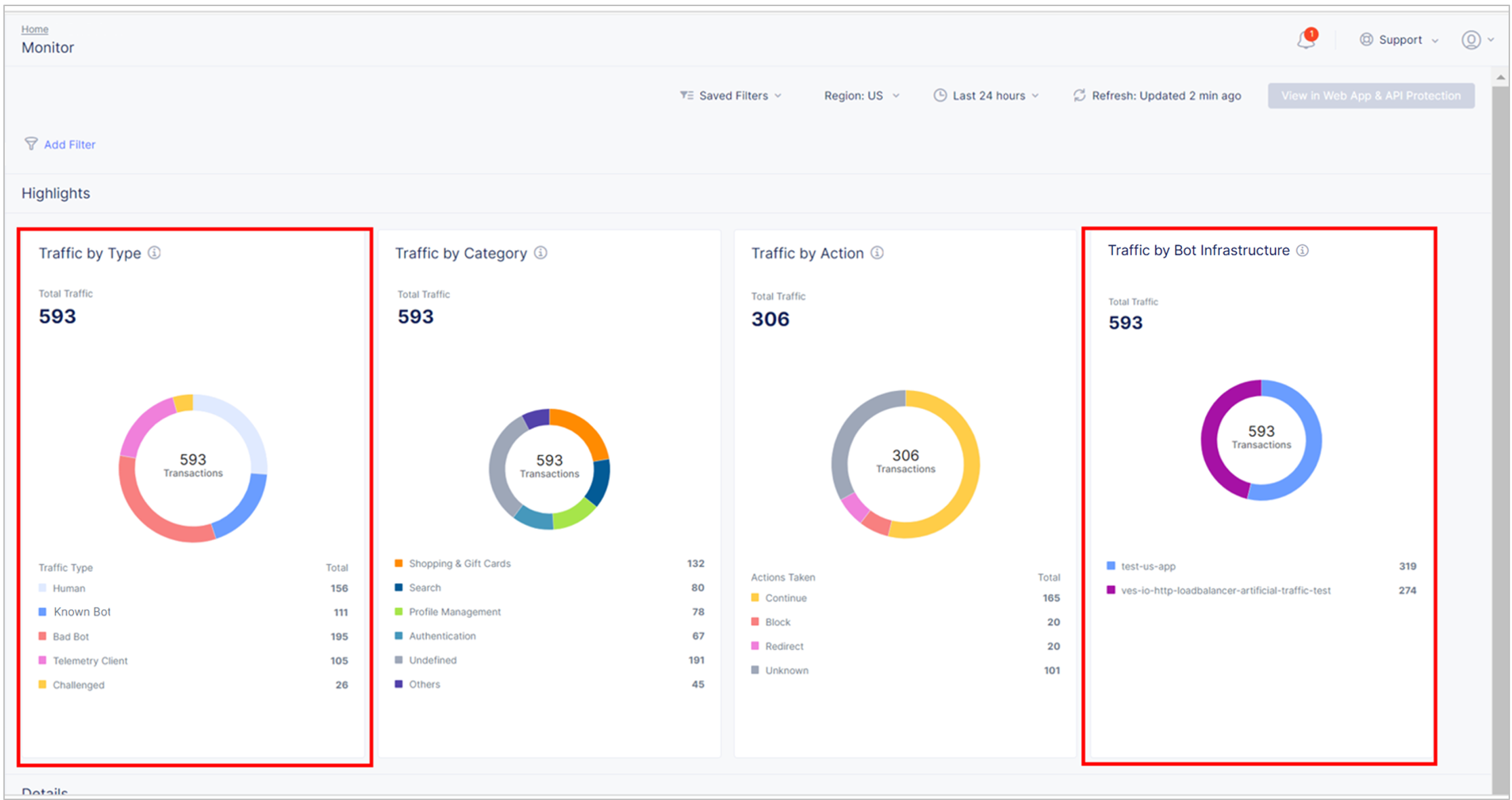
Review the Bot Defense dashboard to see the types of traffic that Bot Defense identified. From the Bot and Risk Management navigation menu, select Overview > Monitor.
- In the Protected Apps Overview widget, check that your protected application is listed and that the amount of traffic is appropriate.
- In the Traffic Overview widget, check that the level of human, known bot, bad bot, and other activity is appropriate.
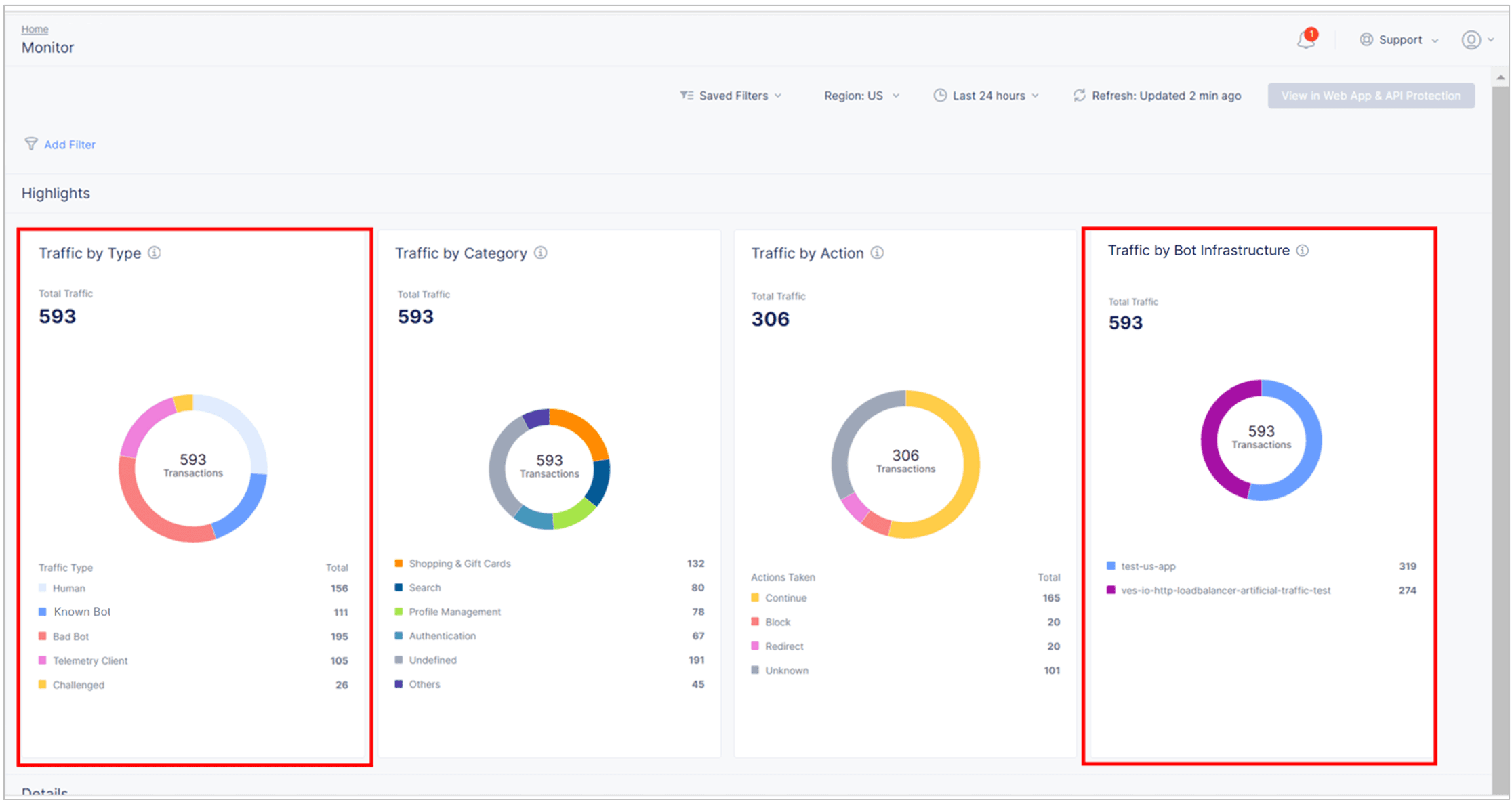
Figure: Bot Defense dashboard
From the time-period drop-down menu, select Last 24 hours. In the Traffic Visualized section, check whether traffic Bot Defense marked as malicious increases during the day and decreases at night. If so, this might indicate that it's human traffic.

Figure: Time frame controls
-
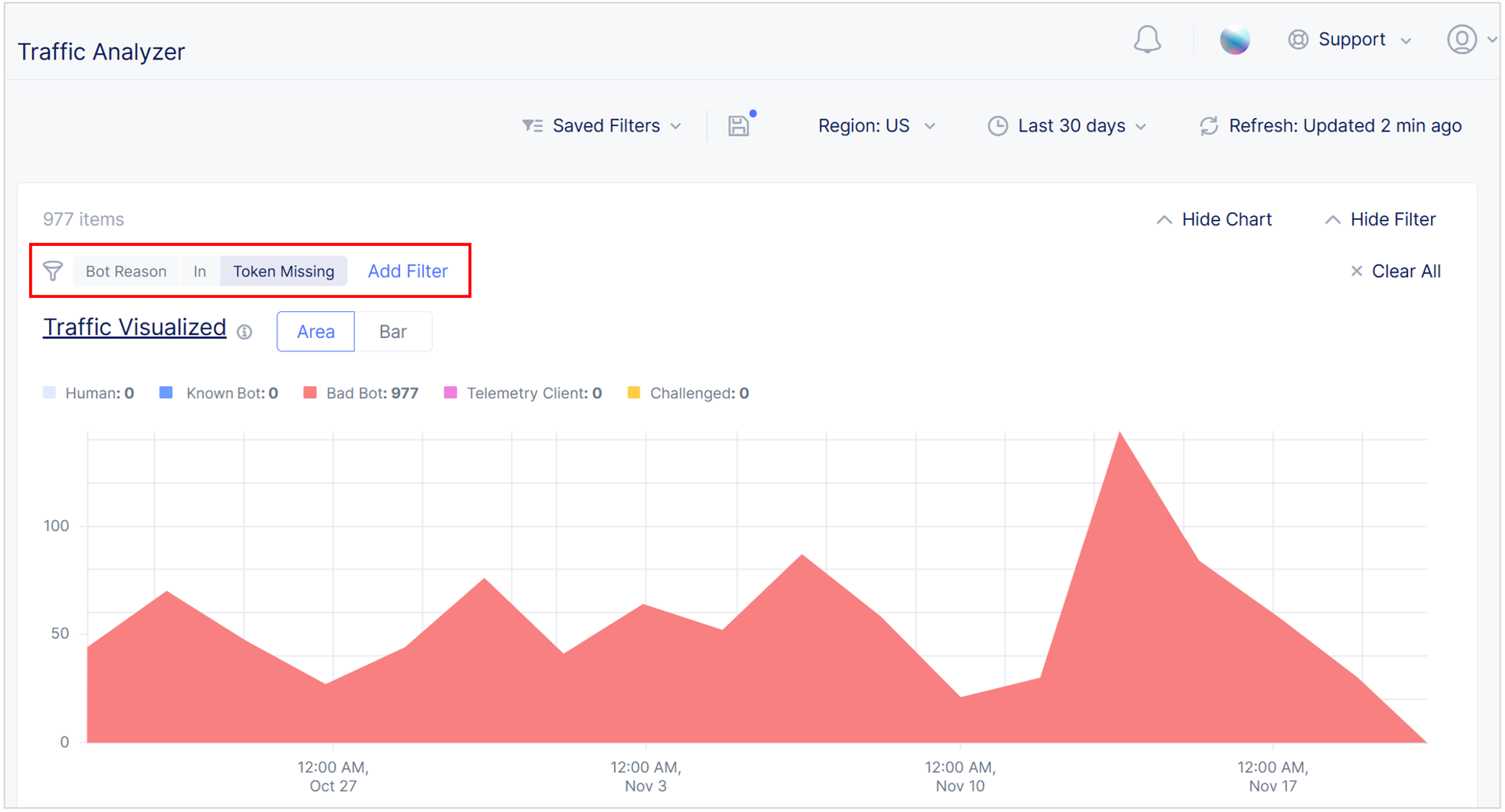
From the Bot and Risk Management navigation menu, select Report > Traffic Analyzer.
-
Look at the distribution of IP addresses and the countries of origin. Confirm that this distribution looks like it comes from your usual user base.
-
Look at the User Agent column and decide whether there are any suspicious user agents present. You can also use this technique to identify wanted automation (known bots), such as test tools or SEO bots.
-
Select Add Filter.
-
From the drop-down menu, select Bot Reason, select In, select Token Missing, and select Apply.
-
Review the traffic and check whether it looks legitimate.
If a typical user request appears in the Token Missing results, it could mean that one of the following occurred:
- The Bot Defense JavaScript didn't run.
- Another JavaScript on the page interfered with the Bot Defense JavaScript.
- The request occurred before the Bot Defense JavaScript loaded.
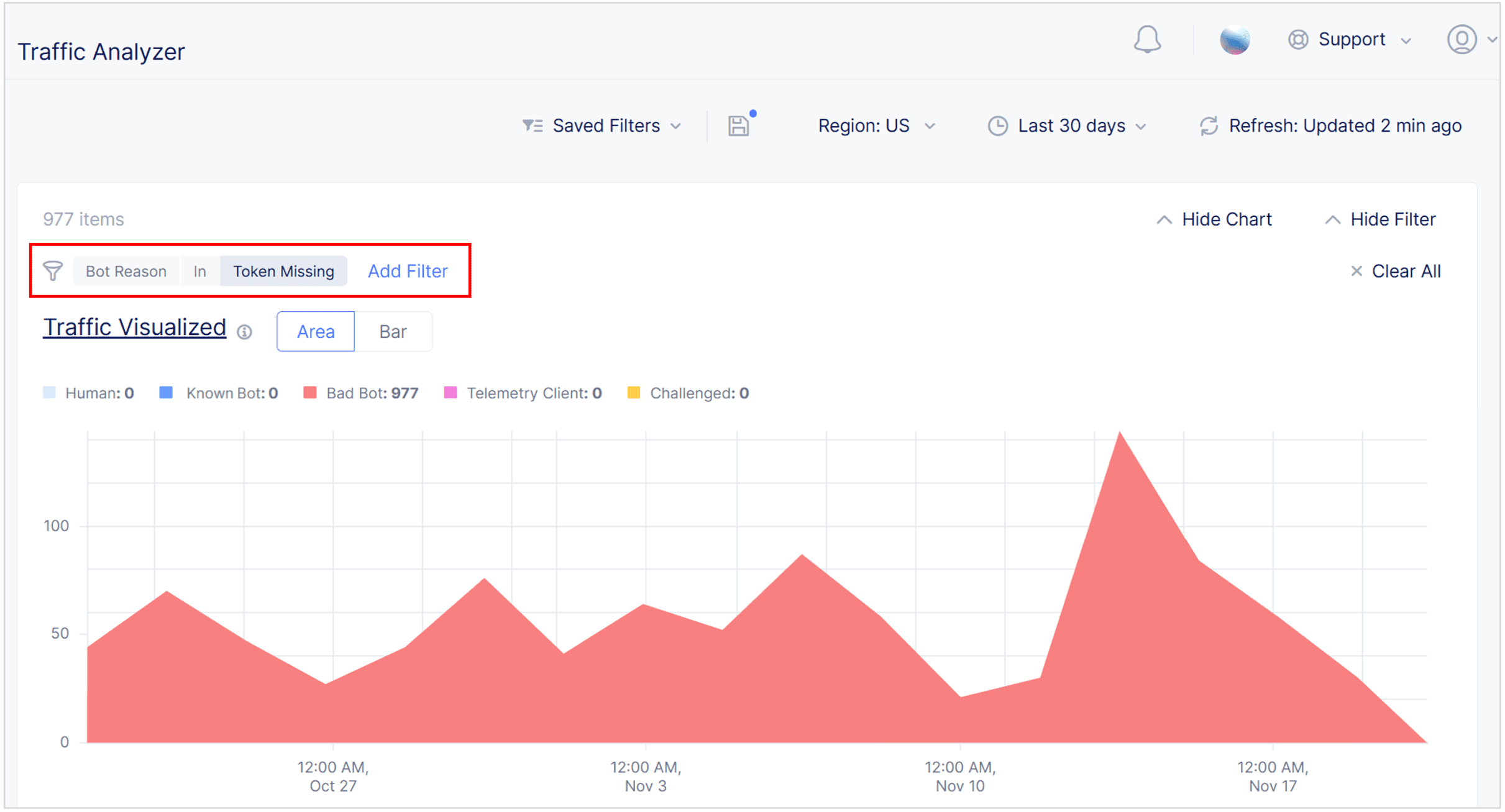
Figure: Traffic Analyzer report
If you see legitimate traffic flagged as automation, check whether you can add it to your allow list.
-

Analyze protected mobile traffic
Complete the following tests to help confirm that Bot Defense is identifying mobile traffic correctly.
- Confirm that the number of protected requests with no telemetry headers is low or nonexistent and that requests with headers are marked as Human.
- Confirm that mobile applications request configuration updates at an expected rate. Each configuration fetch corresponds to approximately one user session.
Review your traffic reports and examine any unexpected results. Fix all issues before you enable mitigation actions.
Analyze protected requests
Complete a false positive analysis to decide whether Bot Defense marked any legitimate traffic to your mobile application as non-human.
- In the Bot Defense Traffic Analyzer report, add the User Agent filter.
- Select In, select your application version, and then select Apply.
- Make sure to display the Bot Reason and Traffic Type columns.
In the list of filter results, check whether Bot Defense marked any traffic as non-human. For example, is traffic identified as Known Bot or Bad Bot? If yes:
- If the Bot Reason column displays Token Missing, look at the IP distribution and decide whether the traffic looks like user traffic or automation. Is the traffic limited to a particular platform (iOS or Android)?
- If the Bot Reason column displays something other than Token Missing, but the traffic looks human, this is unexpected behavior. Investigate or contact support@cloud.f5.com for assistance.
- If the IP Address distribution looks organic and isn't concentrated on only a few specific IP addresses, this might indicate that there is a problem with your Mobile SDK integration.
- In the Path column, carefully examine the URLs that Bot Defense marked as illegitimate. If traffic from the URLs that Bot Defense marked as malicious increases during the day and decreases at night, this might indicate human traffic. Additionally, if the traffic is from a wide range of IP addresses, it can also indicate human traffic.
If the flagged traffic is an expected automation, for example, for a monitoring service, decide whether you can add the IP addresses to an allow list.
Review configuration update request frequency
Mobile applications that use the Distributed Cloud Mobile SDK fetch new configuration settings from Bot Defense at specific times during the application lifecycle, including:
- At application start
- At mitigation
- After four hours (if the application is in the foreground)
Typically, you see approximately one configuration fetch during each active user session. Because some users start an app but don't proceed further, and others have two sessions within the same four-hour period, it's typical to see an average of 0.5-2 sessions per configuration fetch.
Next steps
After you confirm that Bot Defense is functioning as expected, that legitimate traffic isn't being marked as automation, and that your mobile applications are communicating properly with Bot Defense, you can update your Bot Endpoint Policy to enable mitigation actions. For information, see Configure the Bot Endpoint Policy.
On this page:
- Overview
- Verify JavaScript tag injection in your entry pages
- Verify Mobile SDK integration
- Check Mobile SDK initialization
- Check decorated requests
- Check mitigation
- Analyze Bot Defense results
- Analyze protected website traffic
- Analyze protected mobile traffic
- Analyze protected requests
- Review configuration update request frequency
- Next steps